
Assets
Upload and organise images, videos, and other files — then reference them from your content schemas.
Localess Assets is a file manager for all media and documents used across your content. Files are organised in a folder hierarchy and served via CDN URLs that you can reference from content schemas or fetch directly via the API.
Main Screen
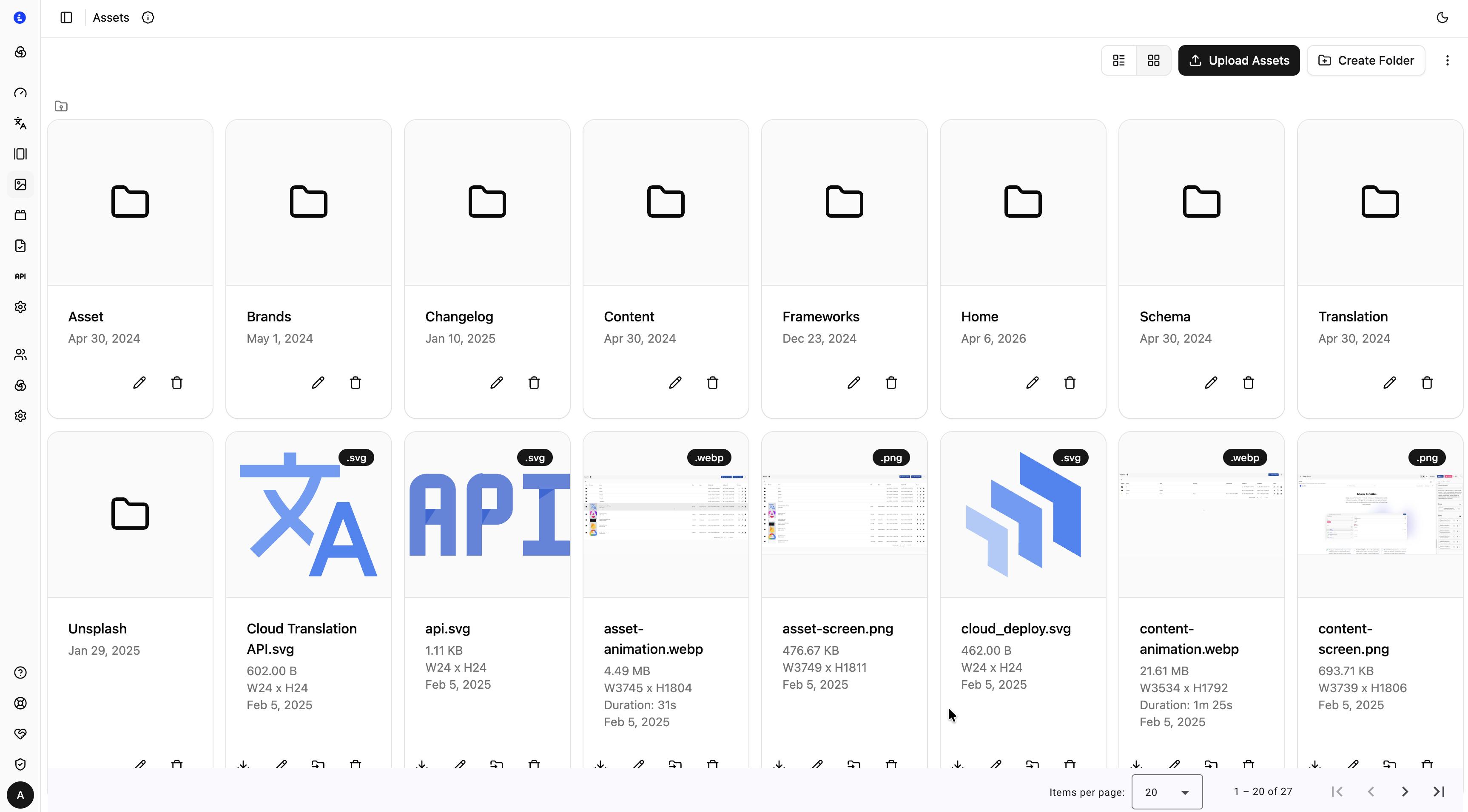
Navigate to Assets from the side menu. Assets are displayed in a grid of folders and files, with folders always listed first.
Navigation
The breadcrumb bar at the top of the asset grid shows your current location in the folder tree. Click any segment to navigate back up. Click a folder card to enter it.
Toolbar
| Action | Description |
|---|---|
| Upload | Add files to the current folder — From Local (files from your device), From Link (a web URL Localess fetches and stores), or From Unsplash |
| ⋮ menu | Import, Export, and Regenerate Metadata for existing files |
| Create Folder | Create a new subfolder in the current location |
| View toggle | Switch between grid and list view |
Uploading Files
Files can be added in several ways:
- From Local — choose Upload → From Local and select one or more files from your device.
- Drag and drop — drag files directly onto the asset grid.
- Paste — paste an image from the clipboard anywhere on the screen.
- From Link — provide a web URL and Localess fetches and stores the file for you.
- From Unsplash — search Unsplash and import a photo. Shown only when the Unsplash integration is enabled at build time (
LOCALESS_UNSPLASH_ENABLE— see Configure the build).
Multiple files can be uploaded at once. Each file shows an in-progress indicator while uploading. Once complete, the file card appears in the grid with its preview, type badge, and metadata.
Creating Folders
Click Create Folder and enter a name to create a new subfolder in the current location. Use folders to organise assets by project area, content type, or locale (e.g. images/, icons/, documents/).
File Cards
Each file card displays:
| Field | Description |
|---|---|
| Preview | Thumbnail for images; icon for other file types |
| Type badge | File extension shown in the top-right corner (e.g. .svg, .webp, .png) |
| Name | File name |
| Size | File size in human-readable format (e.g. 4.49 MB) |
| Dimensions | Width × Height in pixels, shown for images and video (e.g. W3749 x H1804) |
| Duration | Playback length for animated and video files (e.g. Duration: 31s) |
| Date | Date the file was last updated |
File Actions
Hover over a file card to reveal action buttons:
| Action | Description |
|---|---|
| Edit (pencil) | Edit the file's alt text and other editable metadata |
| Download | Download the original file |
| Move | Move the file to another folder |
| Delete | Permanently delete the file |
Deleting a file that is referenced in published content will leave those references unresolvable. Check content usage before deleting.
Folder Actions
Hover over a folder card to reveal:
| Action | Description |
|---|---|
| Edit (pencil) | Rename the folder |
| Delete | Delete the folder and all its contents |
Pagination
The bottom of the asset grid shows the current page range and total item count. Use the Items per page dropdown to control how many assets are shown at once, and the arrow buttons to move between pages.
Alt Text
Each file has an optional alt field for accessibility and SEO. Set it with the edit (pencil) action on a file card. When you upload an image that carries an embedded caption (XMP, IPTC Caption-Abstract, or EXIF ImageDescription), Localess pre-fills the alt text from it — very long captions are skipped, since stock-library licensing text makes poor alt text.
Alt text isn't part of the asset field itself. Fetch content with resolveAsset: true to get an assets map carrying each asset's alt, dimensions, size and duration — see Content Fetch Parameters.
Using Assets in Content
Reference an asset in a content schema by using a field of type Asset. When fetching content via the API the field resolves to a ContentAsset object containing the asset URI:
interface ContentAsset {
  kind: 'ASSET';
  uri: string; // The asset's ID
}
Resolve the URI to a full CDN URL using the SDK:
// @localess/client
const url = client.assetLink(content.data.image);

// @localess/react
import { resolveAsset } from "@localess/react";
const url = resolveAsset(content.data.image);
Transform parameters resize or convert images on the fly — see Image Transforms.
See Schemas for how to define asset fields in your content model.
Schemas (Multiple)
Embeds a list of Node schema blocks inline. Use it for repeatable components such as page sections, button groups, or feature lists.
Draft & Publish
Nothing goes live until you say so. Localess keeps every change in Draft until you explicitly promote it to Published — giving your team a safe staging buffer built into the CMS.