
Visual Editor
Preview and edit content in real time — see every change reflected instantly in your running application without leaving the Localess UI.
The Localess Visual Editor opens your frontend application inside an iframe alongside the content form. As you edit fields on the right, the changes are pushed to the preview on the left in real time. Clicking on any marked element in the preview jumps directly to the corresponding field in the form.
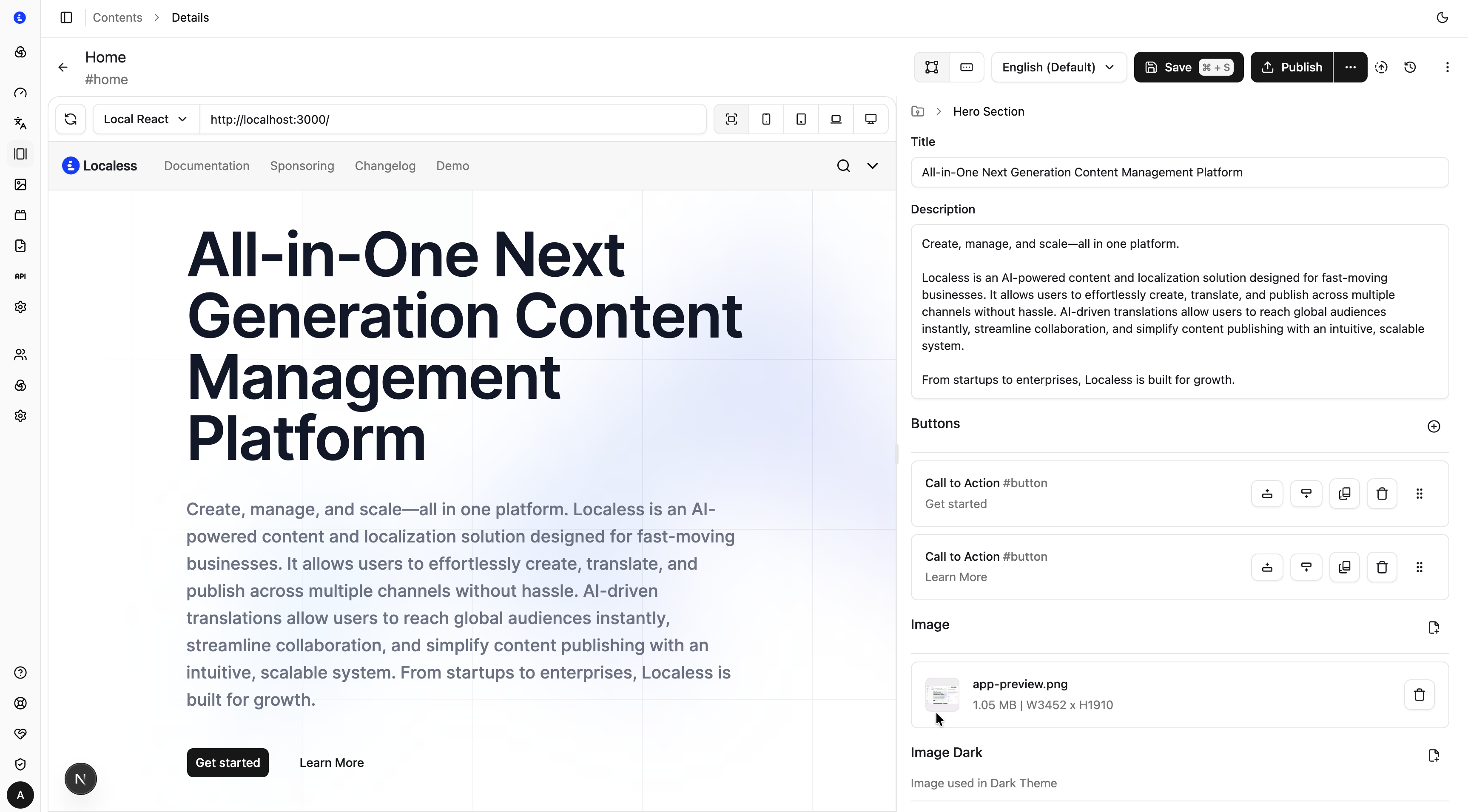
How it works
- Localess renders your app inside an iframe in the left panel of the document editor.
- A small sync script loaded by your app opens a message channel to the Localess parent window.
- When a field changes in the form, Localess sends an
inputorchangeevent through the channel. - Your app receives the event, updates its local state, and re-renders — no page reload needed.
- Editable elements marked with
data-ll-idanddata-ll-schemaattributes are highlighted so editors can click them to jump to the right field in the form.
The editor toolbar switches between Visual Editor — the preview beside the form — and Form Mode, the form alone.
Setup
Integrating the Visual Editor takes one step in Localess and three in your frontend application.
Step 1 — Add a preview environment
In Settings → Visual Editor, add one or more environments, each with a Name (e.g. Production, Development) and a URL. Editors pick the environment from the preview toolbar.
The editor loads URL + locale/ + fullSlug, leaving the locale segment out for the default locale — so end the URL with /: https://preview.example.com/ loads https://preview.example.com/blog/post.
The URL must be an absolute http:// or https:// URL on a different origin from the Localess admin app, or the preview shows Invalid preview URL. The preview runs in a sandboxed iframe, and messages are only exchanged with that origin — so a URL that redirects to another origin (for example, to www.) won't connect. Use the final address.
Step 2 — Load the sync script
The sync script must be loaded in the browser. Use the SDK helper or add the script tag manually.
Via @localess/client:
import { loadLocalessSync } from "@localess/client";

// Call once on the client side, e.g. in your root layout or app entry point
loadLocalessSync("https://my-localess.web.app");
Or manually in HTML:
<script
  id="localess-js-sync"
  type="text/javascript"
  async
  src="https://my-localess.web.app/scripts/sync-v1.js"
></script>
Replace https://my-localess.web.app with your Localess instance origin.
Framework-specific SDKs can load the script automatically. Set enableSync: true when registering the provider:
| SDK | Option |
|---|---|
@localess/react | localessInit({ enableSync: true }) |
@localess/angular | provideLocaless({ enableSync: true }) |
@localess/vue | app.use(Localess, { enableSync: true }) |
@localess/nuxt | localess: { enableSync: true } in nuxt.config.ts |
@localess/svelte | localessInit({ enableSync: true }) |
@localess/astro | localess({ enableSync: true }) in astro.config.mjs |
Step 3 — Mark editable elements
Add data-ll-id and data-ll-schema attributes to the root element of each content block so the Visual Editor can highlight and select it. Add data-ll-field to individual field elements for field-level selection.
Use the helper functions from @localess/client to set these attributes:
import { localessEditable, localessEditableField } from "@localess/client";

// Marks the block root as editable
// Returns: { 'data-ll-id': '...', 'data-ll-schema': '...' }
localessEditable(data)

// Marks a specific field as editable
// Returns: { 'data-ll-field': 'title' }
localessEditableField<MyPage>('title')
React example:
const HeroSection = ({ data, links }) => (
  <section {...localessEditable(data)}>
    <h1 {...localessEditableField<HeroSection>('title')}>{data.title}</h1>
    <p {...localessEditableField<HeroSection>('subtitle')}>{data.subtitle}</p>
  </section>
);
Vue example:
<template>
  <section v-bind="localessEditable(data)">
    <h1 v-bind="localessEditableField('title')">{{ data.title }}</h1>
  </section>
</template>
Svelte example:
<section {...localessEditable(data)}>
  <h1 {...localessEditableField('title')}>{data.title}</h1>
</section>
localessEditableandlocalessEditableFieldare no-ops outside the Visual Editor iframe — they return empty objects when the sync script is not active, so they are safe to use in production.
Step 4 — Subscribe to edit events
Listen for input and change events from window.localess and update your application state. Always guard the subscription with a browser check — window.localess only exists when the sync script is loaded inside the Visual Editor iframe.
import { isBrowser } from "@localess/client";

if (isBrowser() && window.localess) {
  window.localess.on(['input', 'change'], (event) => {
    if (event.type === 'input' || event.type === 'change') {
      // Replace your server-fetched content with the live editor data
      setPageData(event.data);
    }
  });
}
The input event fires whenever a field value changes — every keystroke — for a real-time preview. The change event fires when blocks are added, removed, duplicated or reordered, and once when the preview connects, carrying the current content. Subscribe to both: input alone misses structural edits and the initial content.
Events reference
| Event | When it fires | Payload |
|---|---|---|
input | Whenever a field value changes (every keystroke) | { type: 'input', data: ContentData } |
change | When blocks are added, removed, duplicated or reordered — and once when the preview connects, with the current content | { type: 'change', data: ContentData } |
save | When the document is saved | { type: 'save' } |
publish | When the document is published | { type: 'publish' } |
unpublish | When the document is unpublished | { type: 'unpublish' } |
pong | Heartbeat response from the editor | { type: 'pong' } |
enterSchema | Editor cursor enters a schema block | { type: 'enterSchema', id, schema, field? } |
hoverSchema | Editor cursor hovers over a schema block | { type: 'hoverSchema', id, schema, field? } |
leaveSchema | Editor cursor leaves a schema block | { type: 'leaveSchema' } |
SDK integrations
Official SDKs provide built-in Visual Editor support with enableSync and helper utilities. For frameworks without a dedicated SDK, use @localess/client directly following the manual setup steps above.
| Framework | SDK | Guide |
|---|---|---|
| TypeScript / Node | @localess/client | TypeScript SDK |
| Angular | @localess/angular | Angular SDK |
| React / Next.js | @localess/react | React SDK |
| Nuxt | @localess/nuxt | Nuxt SDK |
| Svelte / SvelteKit | @localess/svelte | Svelte SDK |
| Astro | @localess/astro | Astro SDK |
Draft & Publish
Nothing goes live until you say so. Localess keeps every change in Draft until you explicitly promote it to Published — giving your team a safe staging buffer built into the CMS.
Webhooks
Receive real-time HTTP notifications when content, translations, or assets change in Localess — and trigger downstream systems automatically.