
Overview
Schemas define the structure of your content — the fields editors fill in and the shape of the data returned by the API.
Schemas are the content models of your Localess space. They define what fields a content document contains, what types those fields are, and how editors interact with them. Every content document is bound to a ROOT schema; nested components use NODE schemas; fixed value lists use ENUM schemas.
This page covers the Schema editor in the admin UI. You can also define the same schemas as TypeScript in your own repository and push them to a space — see Schemas as Code.
Main Screen
Navigate to Schemas from the side menu. The list shows all schemas in your space.
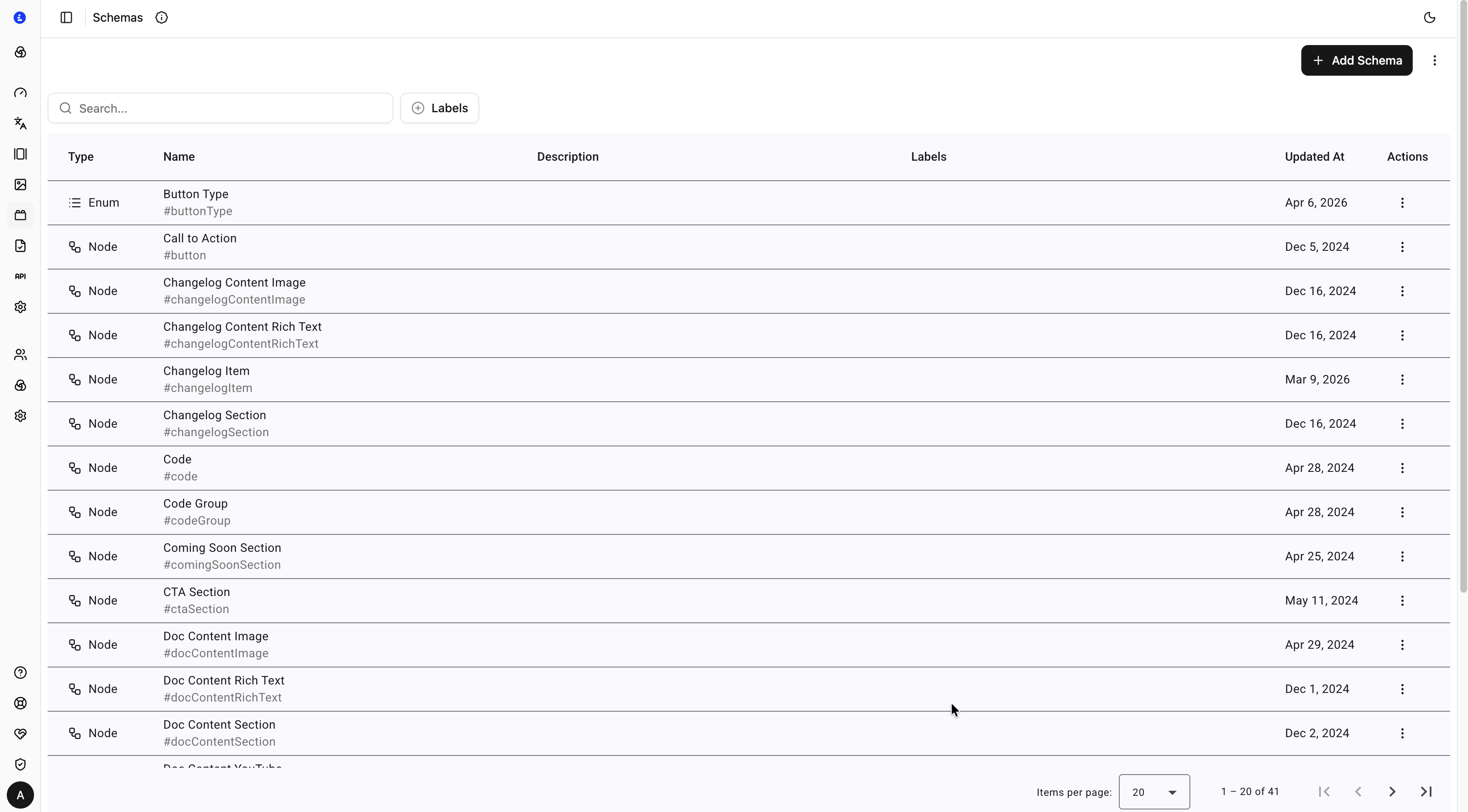
| Column | Description |
|---|---|
| Type | Schema type — Root, Node, or Enum |
| Name | Display name with the internal identifier shown beneath (e.g. #docHeaderSection) |
| Description | Optional description set on the schema |
| Labels | Labels assigned to the schema for filtering |
| Updated At | Timestamp of the last change |
| Actions | Three-dot menu for edit and delete |
Filtering
| Control | Description |
|---|---|
| Search | Filter schemas by name or identifier |
| Labels | Filter by one or more labels |
Schema Types
| Type | Description |
|---|---|
| Root | Top-level schema. Assigned directly to content documents. Only ROOT schemas appear in the Schema picker when creating a document. |
| Node | Nested schema. Embedded within other schemas via Schema or Schemas fields. Use it for reusable components like buttons, cards, or sections. |
| Enum | A fixed list of named values. Used as the source for Option and Options fields. |
Add Schema
Click + Add Schema and fill in:
| Field | Required | Description |
|---|---|---|
| Display Name | — | Label shown to editors in the UI. Falls back to ID if not set. |
| ID | ✅ | Internal identifier used in the API response and generated types (e.g. heroSection). Cannot contain spaces. |
| Type | ✅ | Root, Node, or Enum — see Schema Types above |
Description and labels are set afterwards, in the schema editor's Settings tab.
ROOT and NODE Editor
Click the edit action on a Root or Node schema to open the editor.
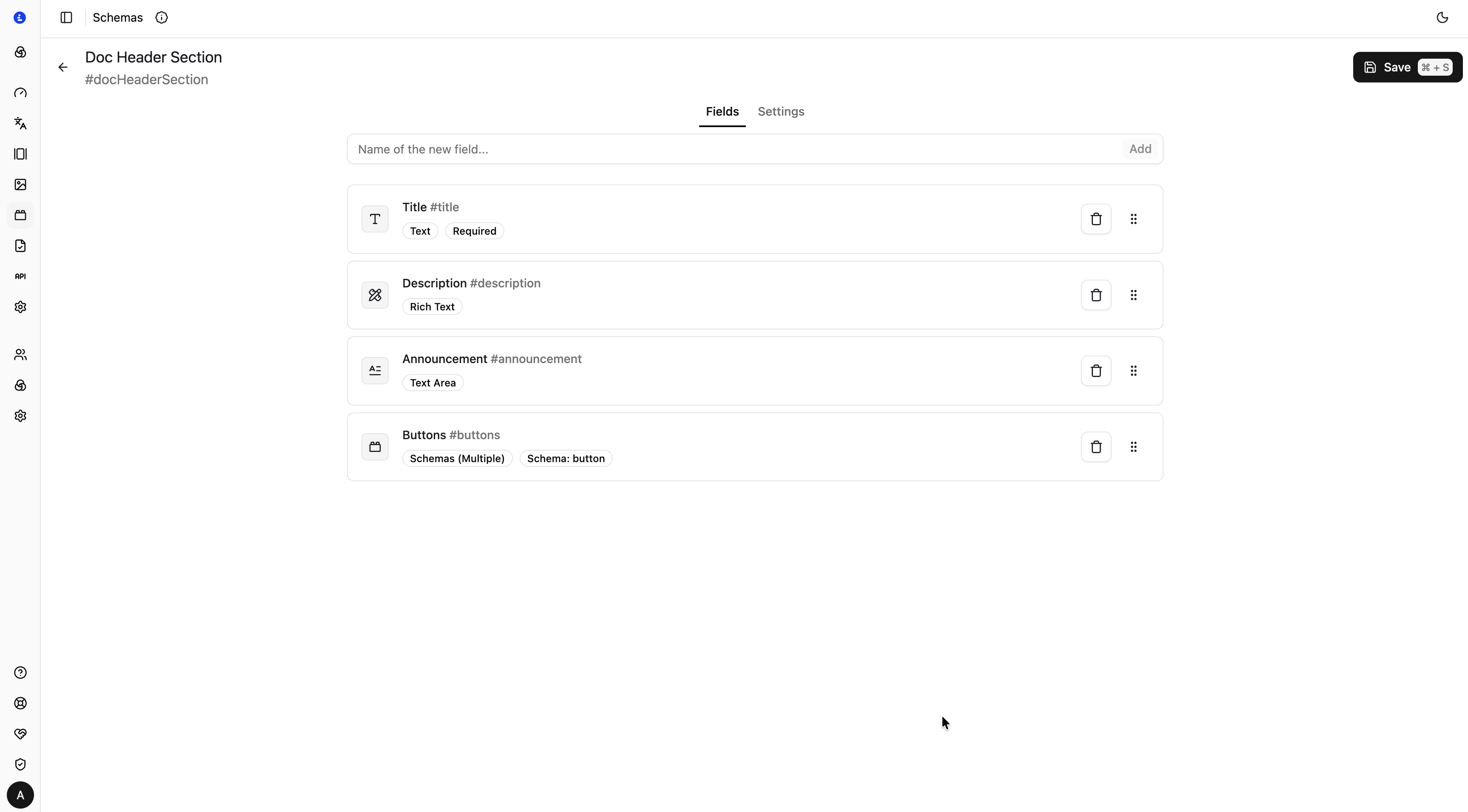
The editor has two tabs:
Fields tab
The Fields tab is where you define the structure of the schema. Each field has a name, a type, and type-specific options.
To add a field, type its internal name in the input at the top and click Add. The field appears in the list where you can configure it. Fields can be reordered by dragging the handle on the right.
Each field entry shows:
- The field type icon
- The Display Name and internal
#name - Type badge and any relevant constraint badges (e.g.
Required,Schema: button) - A delete button
Each field type page documents all available options, including the base options shared by every field.
Settings tab
The Settings tab contains schema-level configuration:
| Setting | Description |
|---|---|
| Display Name | Label shown in the UI |
| Description | Optional description for the schema |
| Preview Field | The field name used as the label when this schema appears as a nested item in the content editor (e.g. set to title so nested blocks show their title in the list) |
| Labels | Labels for filtering |
Press Save or ⌘S / Ctrl+S to save changes.
ENUM Editor
Click the edit action on an Enum schema to open the editor.
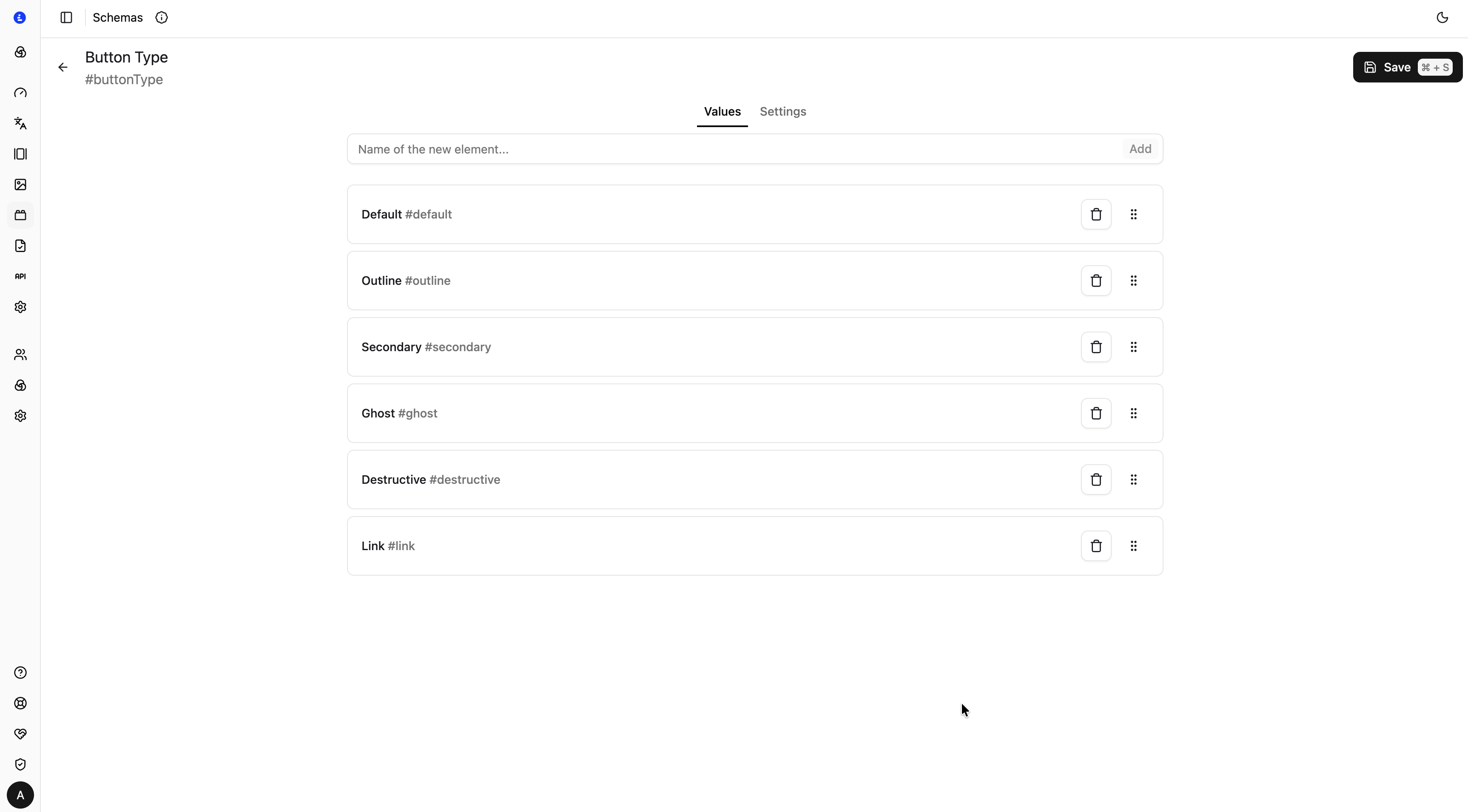
The editor has two tabs:
Values tab
The Values tab is where you manage the list of available options. To add a value, type its name in the input at the top and click Add. Values can be reordered by dragging the handle on the right and deleted with the trash icon.
Each value entry shows the Name (display label shown to editors, e.g. Default) and the internal identifier (e.g. #default). The identifier without the # prefix is the string stored in the API response.
Settings tab
| Setting | Description |
|---|---|
| Display Name | Label shown in the UI |
| Description | Optional description for the enum |
| Labels | Labels for filtering |
Press Save or ⌘S / Ctrl+S to save changes.
Enum values are referenced by Option and Options fields via the Source setting.
Field Types
| Field | Kind | Description |
|---|---|---|
| Text | TEXT | Single-line string — titles, headlines |
| Text Area | TEXTAREA | Multi-line plain text — descriptions, summaries |
| Rich Text | RICH_TEXT | Formatted text with bold, italic, links, lists, headings |
| Markdown | MARKDOWN | Multi-line Markdown string |
| Number | NUMBER | Integer or decimal — amounts, quantities |
| Boolean | BOOLEAN | True / false toggle |
| Color | COLOR | Hex color picker — #rrggbb |
| Date | DATE | Calendar date picker — YYYY-MM-DD |
| Date Time | DATETIME | Date and time picker — YYYY-MM-DDThh:mm |
| Link | LINK | External URL or internal content reference |
| Option | OPTION | Single value selected from an Enum or inline list |
| Options | OPTIONS | Multiple values selected from an Enum or inline list |
| Reference | REFERENCE | Reference to a single content document |
| References | REFERENCES | References to multiple content documents |
| Asset | ASSET | A single uploaded file (image, video, document) |
| Assets | ASSETS | Multiple uploaded files |
| Schema | SCHEMA | A single embedded Node schema block |
| Schemas | SCHEMAS | Multiple embedded Node schema blocks |